Uploading files from your computer
There are two ways to add files from your computer to a VoiceThread slide.
From the create page
- Drag and drop the files from your computer onto the create page.
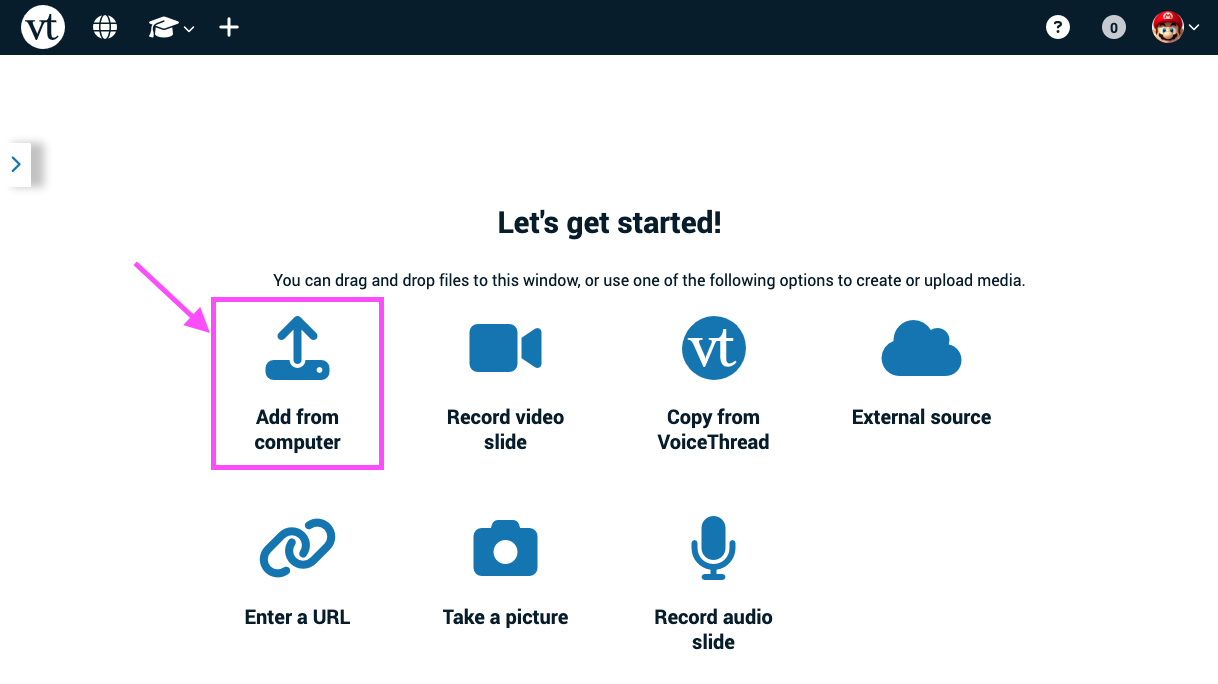
- Click on the “Add from computer” button, and then select the files you want to upload. (If you have already created a slide in this VoiceThread, click “Add media” and then “Add from computer.")
Once you’ve added your file, it will upload and process. The upload status is visible as a progress bar at the bottom of the page, and then the processing phase will show a loading icon inside the slide thumbnail.

Once the file processes, the thumbnail will show an image of the slide, and you’ll see a confirmation message at the top of the screen.
From an open VoiceThread
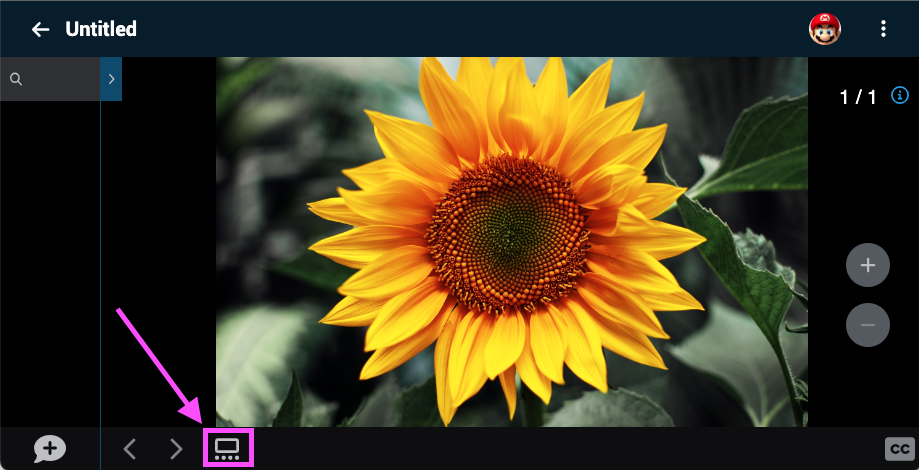
- Click on the slide gallery button at the bottom of the page.
- Click on the “Add media” button.
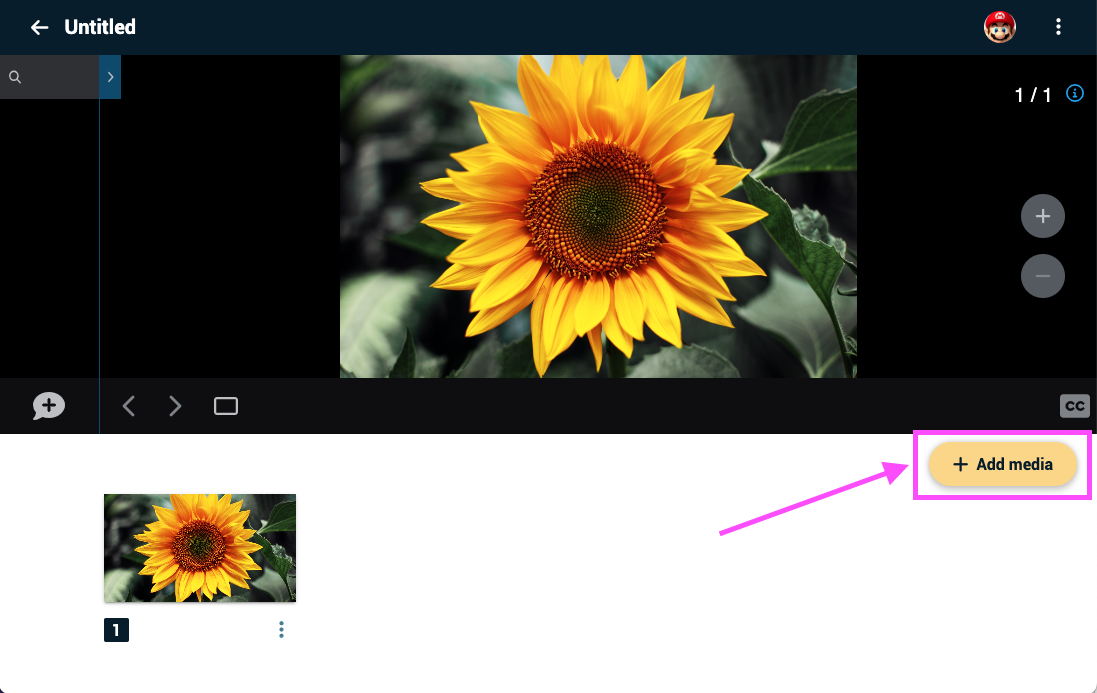
- Click on the “Add from computer” option.

- Select the file you’d like to upload.
Important: Each file uploaded can only contain 50 slides. You can upload multiple 50-slide files into a single VoiceThread if you have an upgraded account.