Recording your screen
Recording your screen directly onto a VoiceThread slide is a great way to demonstrate workflows or give tours of web pages without needing to record using a separate program first.
From the create page
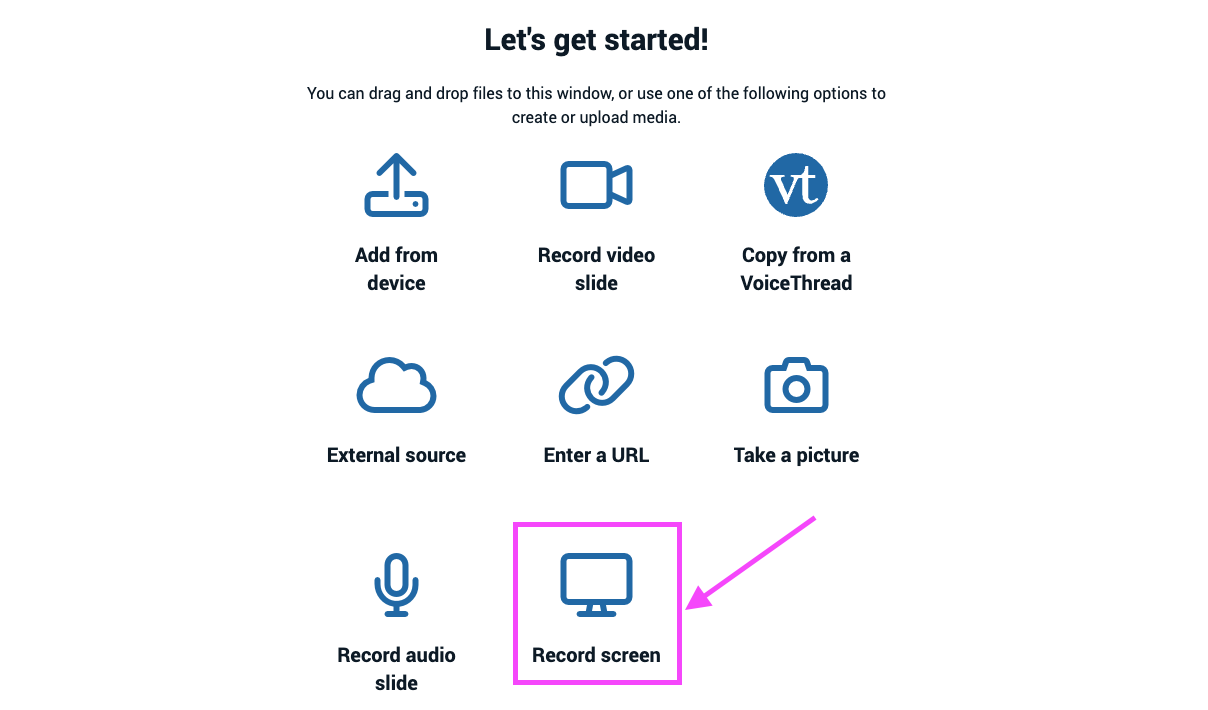
- Click on the “External source” button. (If you have already created a slide in this VoiceThread, click “Add media” and then “External source.")
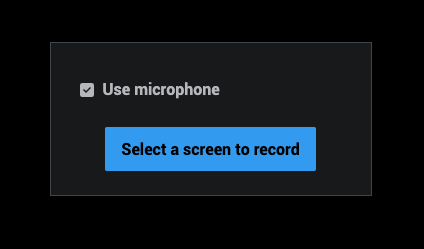
- If you want to include audio from your microphone, check the box reading “Use microphone,” and then click “Select a screen to record.”
-
You’ll see a list of all the tabs and windows you have open in your web browser. Select which one you want to record, and click “Share.” Your computer’s focus will jump to that tab, and the system will start recording immediately.
-
When you’re done recording, click “Stop sharing” at the top of the screen.
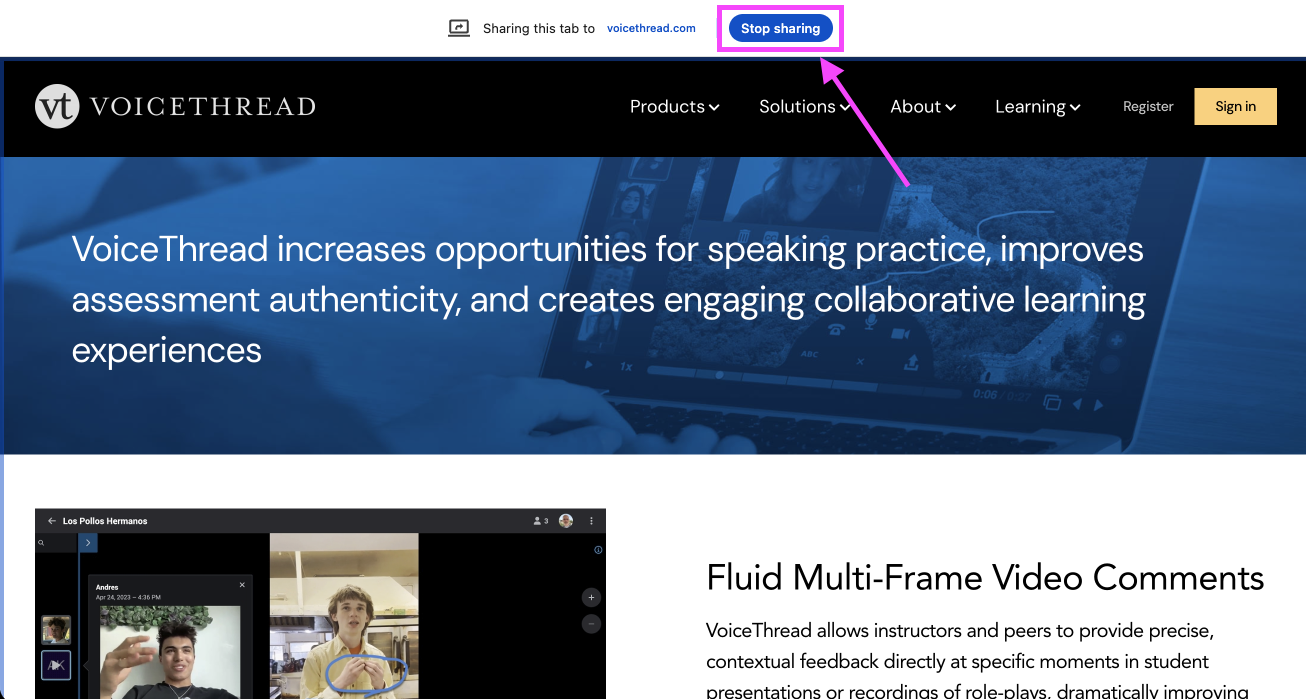
Alternatively, you can click “Stop recording” on the original VoiceThread tab.

- After the video finishes uploading, click “Save” at the bottom of the screen.

From an open VoiceThread
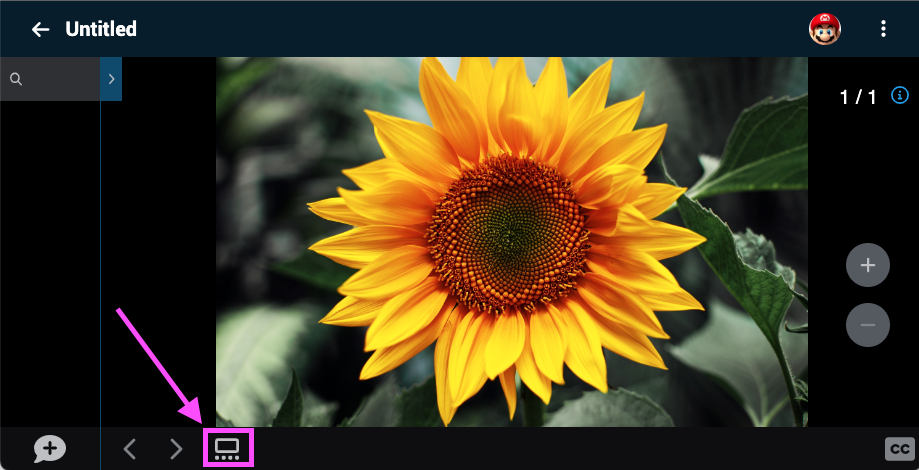
- Click on the slide gallery button at the bottom of the page.
- Click on the “Add media” button.
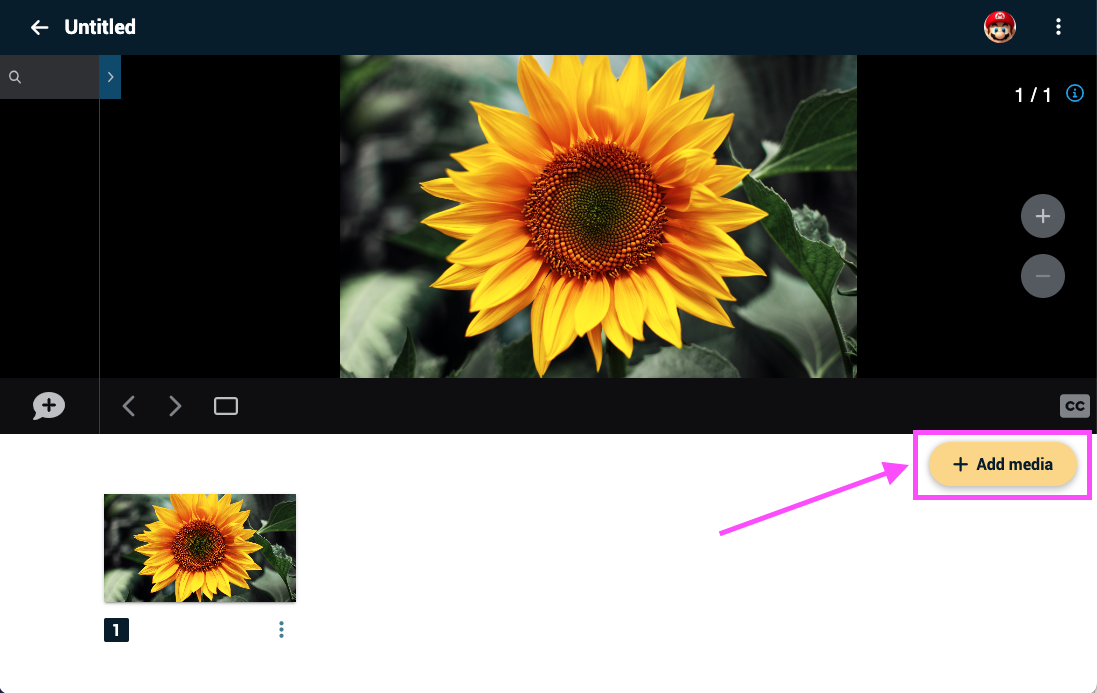
- Click on the “External source” button. (If you have already created a slide in this VoiceThread, click “Add media” and then “External source.")
- If you want to include audio from your microphone, check the box reading “Use microphone,” and then click “Select a screen to record.”
-
You’ll see a list of all the tabs and windows you have open in your web browser. Select which one you want to record, and click “Share.” Your computer’s focus will jump to that tab, and the system will start recording immediately.
-
When you’re done recording, click “Stop sharing” at the top of the screen.
Alternatively, you can click “Stop recording” on the original VoiceThread tab.
- After the video finishes uploading, click “Save” at the bottom of the screen.