Getting around in a VoiceThread
From an open VoiceThread, you can listen to comments, record comments of your own, and even access the settings for that VoiceThread.
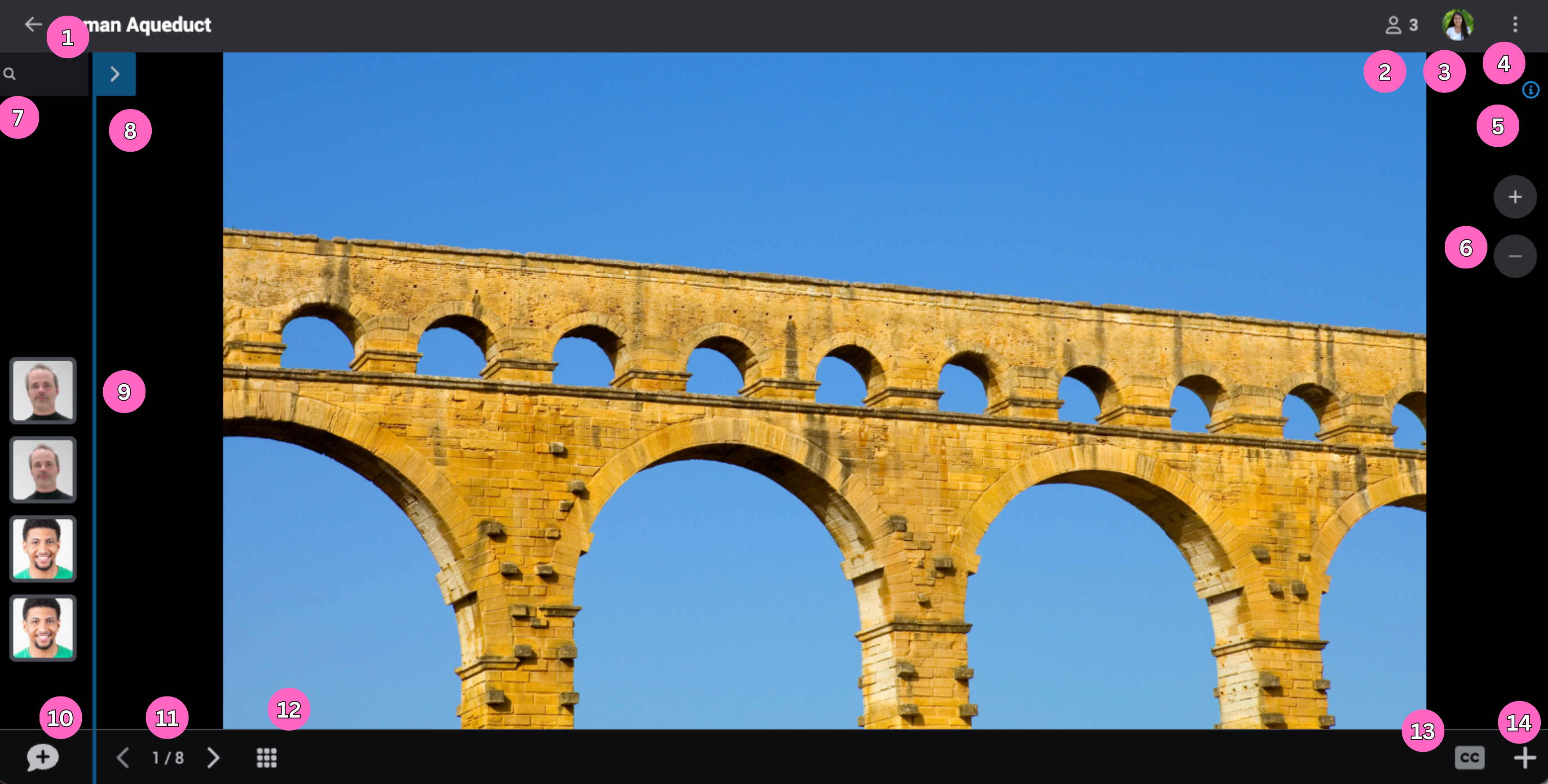
- Back/Home button: Click this to exit the VoiceThread and return to the previous page.
- Sharing settings: Click this to open the share dialog. You’ll only see this icon if you have edit access to the VoiceThread.
- Identity: See the identity you’re currently using and select a different one.
- Menu: Click here to access the share, edit, embed, export, and language preferences.
- Slide info: Find details about this slide, including its title, author, creation date, and any linked content.
- Zoom: Use these buttons to zoom in or out of the slide to see in more detail.
- Comment search: If you are an editor of this VoiceThread, you can search through the comments on the slide. Search by commenter name.
- Detailed conversation channel: Click this button to expand the conversation channel and see commenters’ full names, comment details, and the duration of each comment.
- Conversation channel: Click on a person’s Identity image to listen to that person’s comment.
- Comment button: Click here to open the comment fan (list of all your commenting options) and record a new comment.
- Navigation arrows: Use the arrows to view other slides.
- Slide postcard view: Click here to see all slides in this VoiceThread at once. If you are allowed to add slides to this VoiceThread, you will add them here.
- Closed captions: Turn on closed captioning for this slide if it is a video and if captions have been added.
- If you are allowed to add slides to this VoiceThread, you can also add them here.
Click here to learn about keyboard shortcuts.